Your phone's data, on your PC. Over USB or Wi-Fi.
Use your Android phone's mobile data on Windows without turning on the phone's hotspot or USB tethering, and switch between USB and Wi-Fi without dropping open connections.
Latest release: SmartTether-Setup.exe (PC) and SmartTether.apk (phone). MIT licensed.
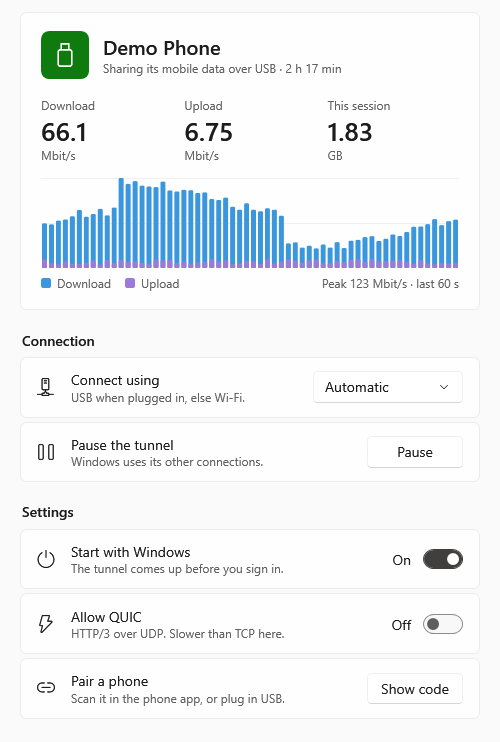
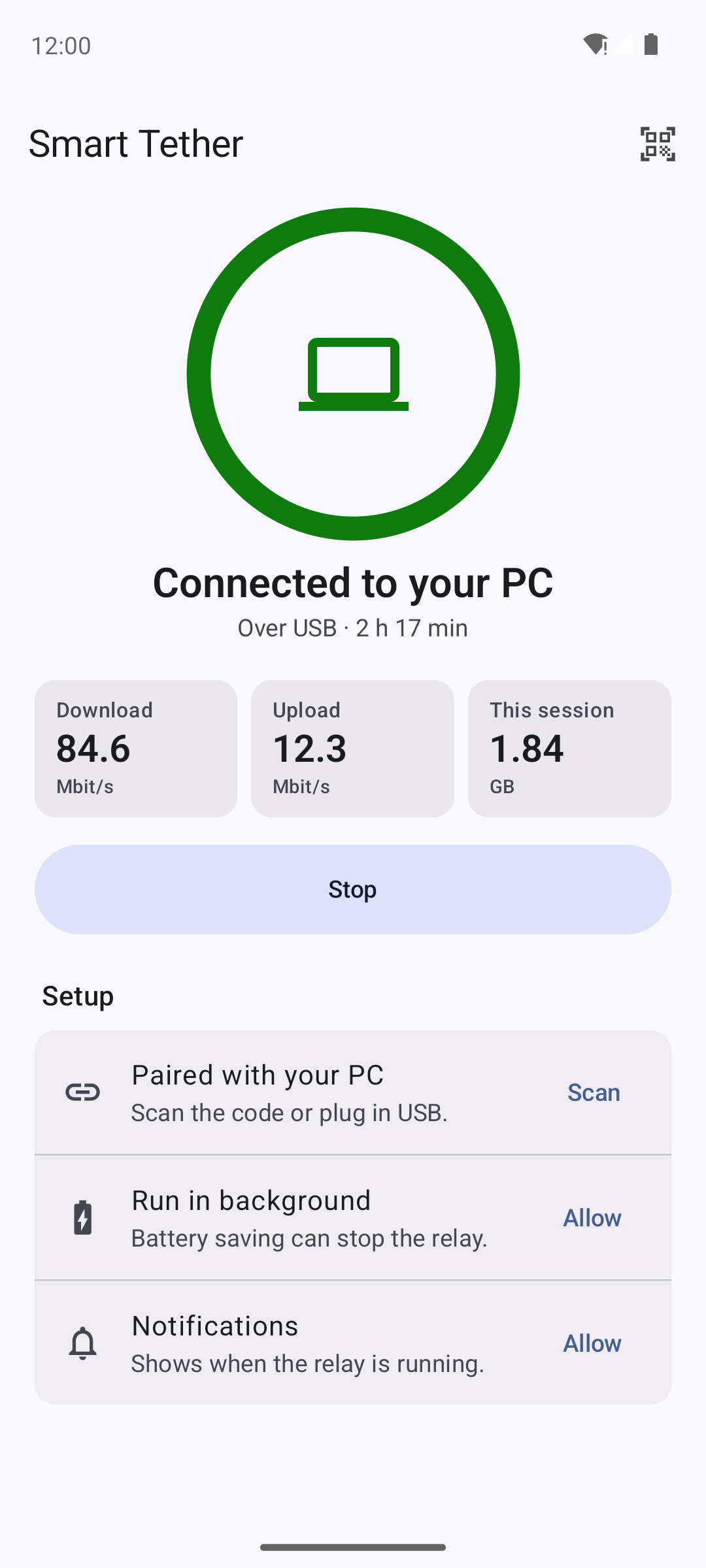
What it does
The screenshots show demo data: a made-up phone name, traffic and pairing code.
USB or Wi-Fi, switched automatically
Plug the cable in and the link moves to USB; unplug it and it carries on over Wi-Fi. Open connections are kept across the switch and across short drop-outs (up to about 30 seconds).
TCP, UDP and DNS
UDP keeps a stable public port per PC socket, also across USB/Wi-Fi switches, so voice calls and games keep working. QUIC (HTTP/3 over UDP/443) is off by default and can be turned on in the PC app.
Runs in the background
The PC side is a Windows service (optionally started with Windows); the phone side is a foreground service that keeps running with the screen off.
Falls back cleanly
When the phone has been unreachable for 10 seconds, or you press Pause, Windows goes back to its other connections (Ethernet, home Wi-Fi).
QR code or USB, once
Pair by scanning a QR code or by plugging in over USB with debugging on.
Live view of the link
Live download/upload rates, a traffic chart of the last minute, data used this session, and Automatic / USB only / Wi-Fi only.
No telemetry, no account
There is no telemetry, analytics, account or cloud service. Traffic leaves through the phone's mobile data connection to the destinations your apps choose.
How it works
The PC's traffic is carried to the phone over one token-authenticated link, and the phone opens ordinary sockets on its mobile data.
USB
Uses adb: the PC forwards a local port to the phone through the cable. USB debugging must be on. USB is preferred whenever it is available.
Wi-Fi
Uses the PC's own Windows Mobile Hotspot (network name SmartTether). The phone joins it as a local-only network; Android does not use it for the phone's own internet. The PC turns the hotspot on by itself.
Setup
Install on both devices, then pair once.
- Install on the PCDownload
SmartTether-Setup.exefrom the latest release and run it. The installer is not code-signed, so Windows SmartScreen may warn: choose More info > Run anyway. Setup installs the service and the tray app. - Install on the phoneDownload
SmartTether.apkfrom the same release to the phone and open it (allow installing from that source when Android asks). - Go through the phone's Setup listAllow notifications, and tap Allow for Run in background. On Xiaomi, Redmi and POCO phones, two more rows appear: Autostart and Battery saver (choose No restrictions).
- Pair onceIn the PC app, under Pair a phone, click Show code and scan it with the phone's QR icon. Or turn on USB debugging, plug the phone in and accept the prompt; the PC pairs and starts the relay by itself.
- Every dayTap Start on the phone (or just plug it in, if it was paired over USB). Left-click the tray icon for the window; right-click for Automatic / USB only / Wi-Fi only, Pause and Quit.
Requirements
PC
- Windows 10 version 1809 or later, or Windows 11, on x64
- For the Wi-Fi link: an adapter that supports Mobile hotspot (USB works without it)
Phone
- Android 12 (API 31) or later
- 64-bit ARM (arm64-v8a), with mobile data
- For USB: Developer options > USB debugging on
Known limits: one phone per PC and one PC per phone; no ARM64 Windows build, no macOS or Linux PC side. While Smart Tether carries the PC's internet, the PC's Wi-Fi is kept off other networks.